Important: To maintain uninterrupted access to MATLAB and Simulink, individuals currently using MATLAB Campus License must update their license information.
Please follow the instructions below
- Ensure that your computer is connected to the internet.
- Launch MATLAB.
- If you encounter a license expiration error, please close MATLAB and then reopen it.
- You may be prompted to sign in with your MathWorks account.
If users encounter any error number, such as error -9, error 10, or any other error code, please search for the Error number on MATLAB Answers to find troubleshooting steps to fix the issue.
Link here: https://in.mathworks.com/matlabcentral/answers/index/
Should the users continue to experience problems, feel free to contact MathWorks Support at this Link: https://in.mathworks.com/support/contact_us.html
Additional Resources:
For more detailed information regarding the MATLAB Campus-Wide License, please visit the Indian Institute of Science MATLAB Portal below:
https://www.mathworks.com/academia/tah-portal/indian-institute-of-science-1102419.html
Please Note: If MATLAB installation has already expired, you will be prompted to activate the software upon attempting to launch MATLAB.
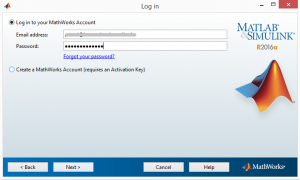
In this case, please proceed by reactivating MATLAB using your MathWorks account credentials using iisc.ac.in and iisc.ernet.in as your email address.
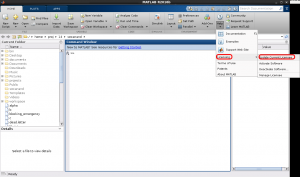
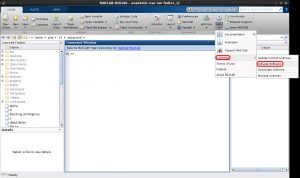
Activating expiring MATLAB license for the next academic yearYour MATLAB license will expire each year on November 1st. The Network-Concurrent installations of Matlab do not need to do anything to update their license. Please note:You should already have a mathworks.com account from the last time you activated or installed MATLAB. Method 1: To renew your Standalone Matlab installation before the license expires annually in November:
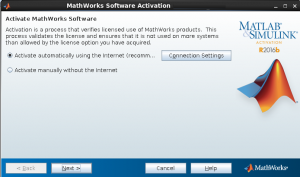
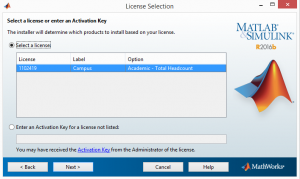
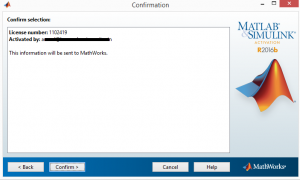
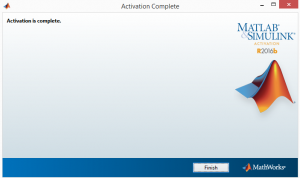
Method 2: If you are unable to start MATLAB because your license has already expired, follow these steps to start the activation client: InstructionsNote: Release R2016b is illustrated; adjust appropriately for a different release.
|